FlightSimBuilder Steam Gauges review: a US$480 panel of physical dials that keeps your hands on the instruments
Nine dials, seven encoders and one fixed single-engine panel. The value is entirely in not reaching for a mouse mid-flight, and the price is the one thing that argues back.
Sim to solo Flying for real as well? Compare training pathways →
A well-built physical six-pack that does the one job it promises — keeping your hands on dials instead of a mouse — in hardware that has not changed in two years, where cheaper rivals have moved to better panels and simpler connections.
| Mechanics | 5.0 / 5 |
| Tactility | 4.0 / 5 |
| Integration | 4.0 / 5 |
| Procedural | 4.5 / 5 |
| ROI | 2.5 / 5 |
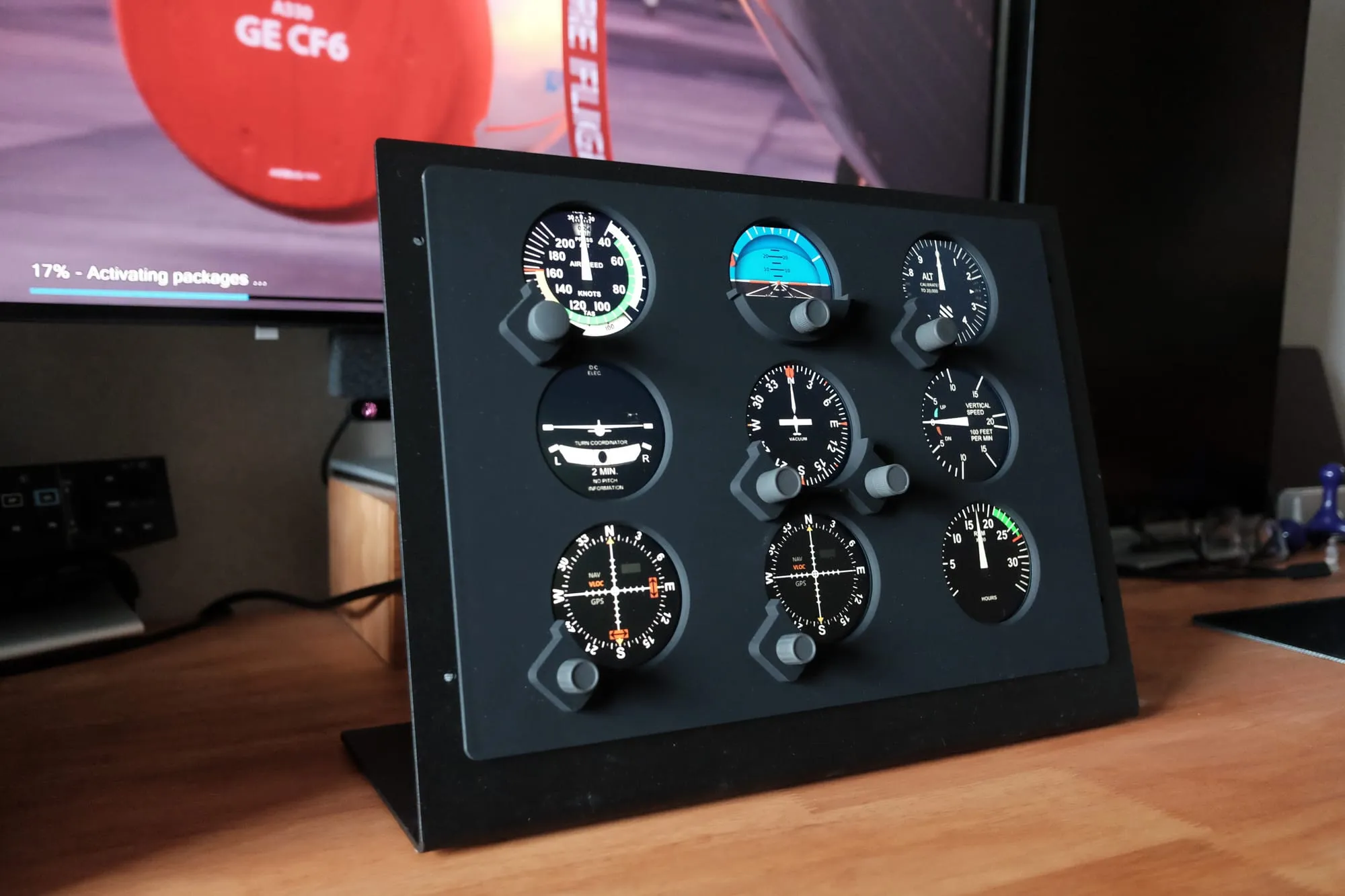
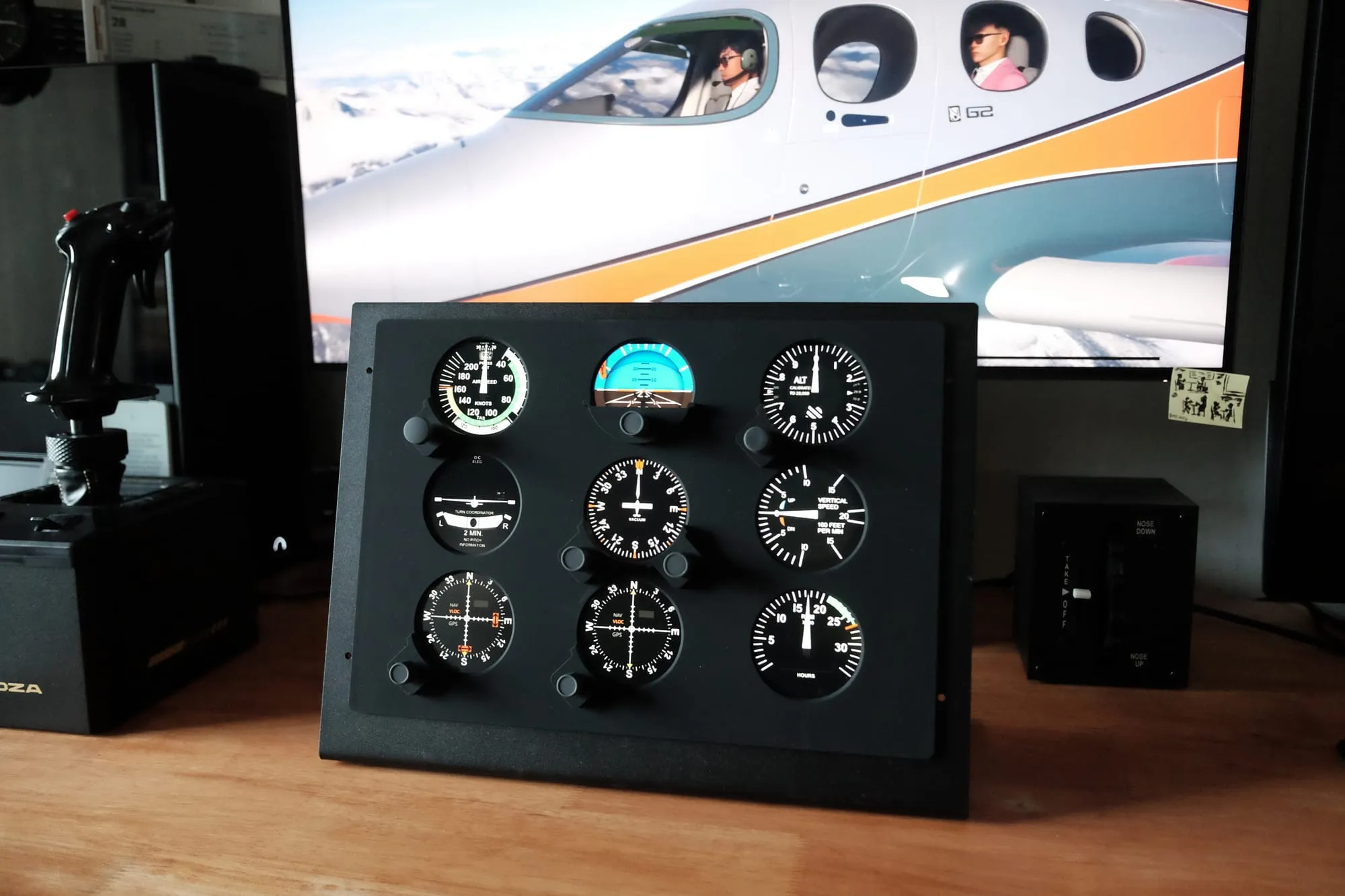
The FlightSimBuilder Steam Gauges is a 300 × 215 mm panel with a 1024 × 768 matte screen behind a bezel cut for nine round gauges, seven rotary encoders bolted to the front, and a Windows application that renders the needles. It costs US$480, the metal desk mount is a separate US$75, and it ships on its own without third-party software. It comes from FlightSimBuilder, a family-owned company in San Diego that has been building sim hardware since 2019, and its CEO, Stan Anderson, is a pilot himself.
Strip away the description and you are buying a monitor with knobs. That sounds reductive until you fly a departure sequence with it because the difference between turning a heading bug with your fingers and clicking a heading bug with a mouse is the difference between staying inside the scan and leaving it. Every physical panel in this category is really sold on that single moment, and the Steam Gauges is a particularly direct expression of it: nine analog faces, no glass cockpit abstraction, and nothing to configure before you fly.
That focus cuts both ways. The layout is fixed to an analog six-pack with an engine cluster, so if you fly something that doesn't have one, this is the wrong purchase.
The hardware inside has also not changed since the product launched in May 2024, and the market around it has: cheaper rivals now undercut the price with single-cable panels and better displays, even if none is a like-for-like analog nine-pack. The honest question is not whether the Steam Gauges works (because it does) but whether what you are buying is still worth US$480 in 2026.
About this review
FlightSimBuilder supplied this unit for review at no cost. There are no commercial terms attached, the company did not ask for an editorial angle, and it did not see this review before publication. I keep the unit. I did pay the tariff on delivery — S$95 to UPS, about US$73 at the rate on the day — which is worth knowing because it is part of what this panel actually costs if you live outside the United States.
What this is
- Type: fixed analog instrument panel for flight simulators, nine gauge faces and seven encoders
- Construction: injection-moulded frame, matte front panel, steel desk mount available separately
- Display: 4:3 LCD at 1024 × 768, matte finish, behind the bezel — the panel appears to Windows as an additional monitor
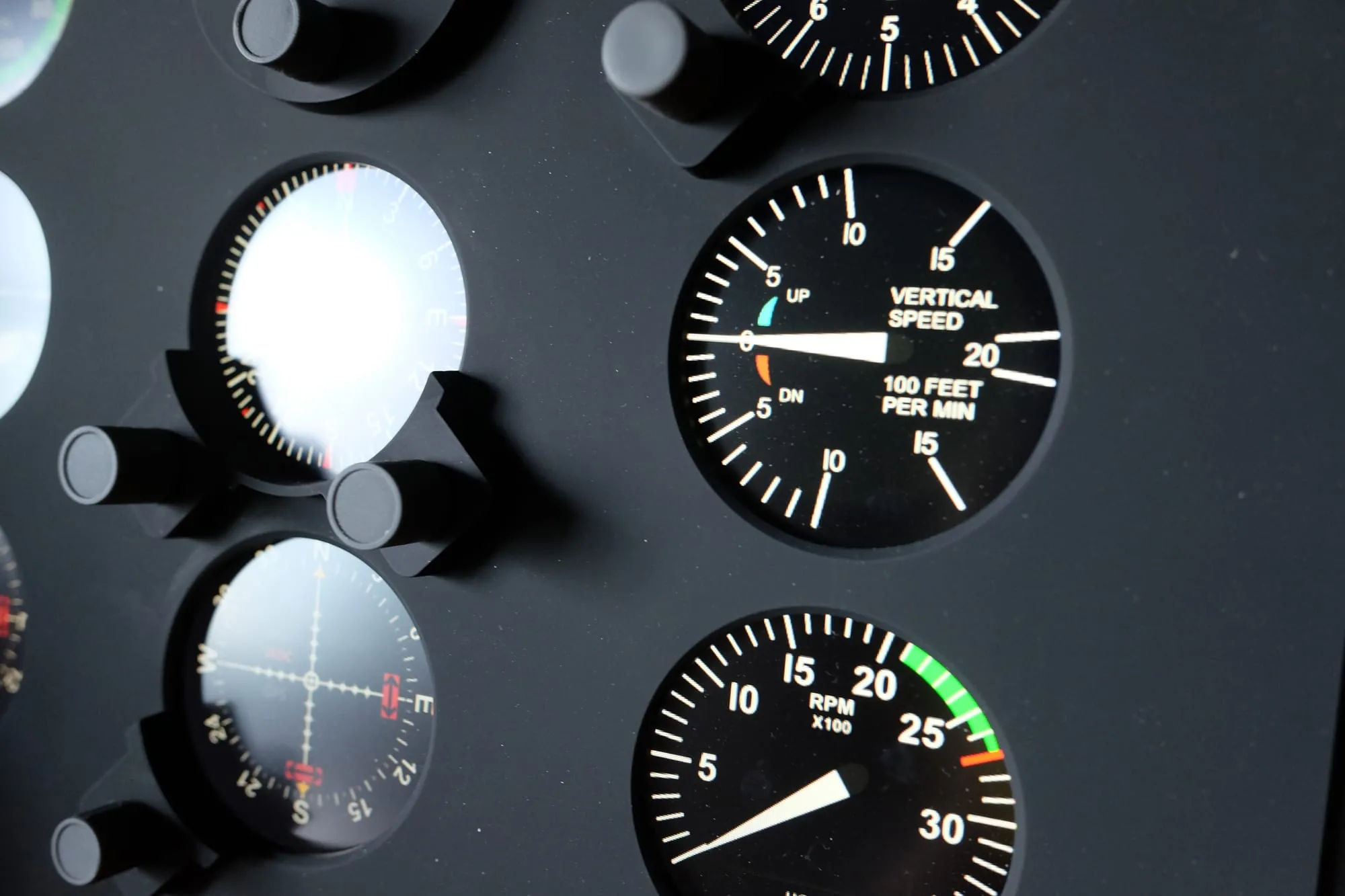
- Instruments: airspeed, attitude, altimeter, turn coordinator, heading, vertical speed, RPM, two navigation gauges
- Layouts out of the box: single piston (Cessna 172, Piper) and high-performance single (Bonanza A36, Cessna 210)
- Connectivity: HDMI, USB-B and a barrel-plug power supply — three cables and a power brick
- Dimensions: 300 × 215 × 34 mm, with a mounting opening of 312 × 217 mm that matches the company's G1000 panel, so the two are interchangeable in a panel or on the same stand
- Software: FlightSimBuilder Hub, a Windows application, no third-party software required — the Hub handles all input mapping
- Compatibility: Microsoft Flight Simulator 2020 and 2024, X-Plane, PC only
- Price: US$480, stand US$75
- Warranty: 2 years, with a 30-day return, on the product page
What you should expect in practice: a panel that fits an existing G1000 cutout and mounts from the rear on four mounting nuts rather than through front screw holes, with no VESA pattern published for third-party arms, a matte screen that resists glare, dial faces about two-thirds the size of the real instruments they represent, and software that maps its own controls rather than asking you to build control profiles in the simulator.
Setup and first-use reality
The unit arrived from the United States via UPS. In the box: the panel, a power brick, a USB-B to USB-A cable, an HDMI cable and the metal desk mount. The assembly instructions live on the website and there's nothing on paper.
Setting it up was uneventful. The Hub found the panel on the first try, and Windows recognized it as an extra display, which is the right mental model for everything that follows. The first run had one glitch: the dashboard refused to render inside its window until I cycled the power. There is no power switch on this unit — you hold the top-left encoder for a few seconds — and doing that once fixed it for good.
The frame is injection moulded with a clean, even finish, and the knobs keep a firm click rather than a plasticky rattle. The silicone coating is pleasant in an air-conditioned room and the kind of finish that goes tacky in humidity. Branding is restrained to the point of invisibility: no logo or wordmark on the housing, the frame or the mount.
Taking the back off explained several things at once. The screen runs on a custom controller board that FlightSimBuilder designed around a Realtek RTD2660H-class scaler, on an HDMI input and a 12 V supply. Presenting to Windows as a standard display is deliberate, which explains why the panel behaves exactly like a second monitor and why its orientation control lives in Windows display settings rather than in the Hub. Ultimately, what you are paying for sits at the front: the nine-cutout geometry, the seven encoders and the software.
One physical note. In my setup, the gauge cutouts sat slightly high relative to the rendered dials, by roughly 10 to 20 pixels at the top of each face, most visible against a solid-color background. Windows reports a full 1024 × 768 work area for this panel, so the geometry is fine. You just need to go to your Taskbar settings and hit "Show my taskbar on all displays" and the offset corrects itself the moment Windows re-lays-out that screen.
But retrace the steps and it returns — correct after a display change, wrong after a launch — so what shifts is the frame the Hub draws rather than the hardware it draws on.
There is no alignment control in the software. The instructions cover two Windows settings — rotate the image to "Landscape Flipped" if it arrives upside down, and press "Next Screen" if the gauges appear on your main monitor.
This was designed primarily for a dashboard mount. So if you're putting this on the desk, its size might be a problem. The panel is a large object at eye height and in my setup it blocked the Tobii eye tracker, so I rearranged the desk around it. The steel mount is beautifully made with real heft, but it lifted the panel higher than I want to look at gauges, so I took it off. Bare, the unit rests back on its lower edge at the right height and stands up well on its own; with no grip on the frame or feet on the mount, you steady it with one hand while you push an encoder with the other. That is a fair trade for the sightline, and it makes the mount an accessory rather than a requirement.
One thing the company does well is answer. Support runs through a single queue: the first line is Dave, a support agent who is also a pilot and sim enthusiast, and Stan Anderson steps in when a ticket needs him. Every reply and clarification I got for this review came from Stan himself, within hours and including a weekend.
The Magenta Standard evaluation
Every pillar asks the same question: does this help a pilot build the right habits, or does it risk building the wrong ones?
1. Mechanics — 5.0/5
The instruments themselves have no mechanism to judge. Needles are pixels, so there is no spring and no damped movement, and the entire panel is 34 mm deep where a single real 3⅛-inch gyro instrument runs 89 to 170 mm deep and weighs up to 1 kg. What you are buying is the dial face, not the instrument.
What is mechanical is the row of encoders, and they are the part that determines whether this works. They have a firm, well-defined click, and after a few minutes I stopped noticing them, which is the highest compliment a knob can receive. Press-and-twirl actions (heading bug, altitude preselect, barometric setting, course selectors) behave the way a pilot expects them to behave, and the knob layout puts the right control near the right instrument.
2. Tactility — 4.0/5
This is where a physical panel either earns its place or becomes desk decoration, and here the Steam Gauges mostly delivers. The dial faces measure 55 mm across, which is about 69 percent of a real 3⅛-inch instrument aperture. In practice it did not matter as much as the number suggests: at the distance I sit from the panel, the faces are legible at a glance, and sitting closer erases the size gap. The dial seen from 400 mm subtends the same angle as a real one from about 580 mm, which is nearer than a real panel sits.
The reason the panel still scores four rather than five is brightness. There is no dimming control available to an owner: nothing on the product page, in the Hub, in the instructions or in the FAQ, and nothing I could find on the unit. The company removed the owner control on purpose: a few owners had dimmed or washed out their own panels by accident, so the adjustment sits behind a service menu it does not publish. That is a support decision, not an oversight, for a device meant to be installed once and left alone — but an awkward one for a panel I fly at night.
Two smaller points in the panel's favor: the matte finish genuinely does control glare, and the viewing angles hold up, so the colors don't wash out when the panel sits below eye level, which is where my desk mount put it.
3. Integration — 4.0/5
Most online coverage of this product is two years old, written when Microsoft Flight Simulator 2024 was new, and the company's own FAQ still hedges toward 2020 as the more consistent platform. I fly 2024 and no longer have 2020 installed, and I have not had a single issue with it.
Whatever friction existed in the 2024 transition has been resolved in the current build. The launch-era reviews also describe a "boost mode" that improved knob responsiveness and removed the lag they complained about; there is no such option in the current software, because the company confirms it is now the default behavior rather than a switch.
The rest of the integration story is unremarkable, which is what you want from a panel. The Hub handles all input mapping, so there are no control profiles to build and no bindings to assign in the simulator; Microsoft Flight Simulator 2024 lists the panel as an ordinary HID controller with empty bindings, and the company's advice is to leave them that way because added bindings produce double inputs.
The Hub ships two layouts — a single piston and a high-performance single — and there is no way to edit them: no adding a gauge, no moving one, no building the panel your own aircraft has. Nothing in the company's documentation offers a custom layout, and the twin and turboprop layouts promised in 2024 are still unshipped. That is the surprising part, because the hardware is not what limits this. The panel is a monitor and seven HID controls, and yet what confines you to two layouts is a Windows application with a fixed catalogue. Everything around it has gone the other way in 2026, with open simulator data and free community renderers doing exactly this work.
Air Manager 5 is the mature paid option, and FlightSimBuilder's own product page names it as the route to fly any compatible aircraft; AirPanel and fsmapper are free SimConnect-based alternatives. Air Manager is good value on its own terms, with complete panels for the Cessna 172, Robinson R44 and Baron 58 among its library, but a US$480 panel should not need another application to fly a different aircraft. Two things have to be solved first: your artwork must suit this nine-cutout grid rather than a standard six-pack, and the Hub has to keep running for the encoders unless you bind them yourself.
FlightSimBuilder's documentation has drifted. The instructions still refer to the "Launcher" when the product is now called the Hub, the simulator setup section only documents Microsoft Flight Simulator 2020 with no 2024 path, and X-Plane remains the harder platform: the official route drops files into the default Laminar Cessna 172 folder and requires launching X-Plane through the company's software. None of it stopped me flying, and yet all of it is unnecessary in a product that has been on sale since 2024. The company agrees the instructions lag and confirms there is no setup difference between the two sims; it says it will update them, and the Launcher-to-Hub naming.
4. Procedural — 4.5/5
The strongest case for this panel is the pre-departure flow. Setting an aircraft up for takeoff is a sequence of knob and dial work — heading bug, altitude, barometric setting, radios, courses — and I did all of it by hand instead of by mouse. The freedom! That builds muscle memory which transfers to the aircraft, because my hand learned the reach without my eyes leaving the instruments. That is the habit a student pilot needs, and this panel trains it.
What it does not do is replace the rest of the checklist. Magnetos, mixture, fuel pump, carburetor heat, trim, flaps, lights and the transponder are not panel controls, so the engine-start sequence still sent me to the keyboard for the switches and back to the panel for the avionics.
5. ROI — 2.5/5
The price is where this gets uncomfortable, and the product's quality is not the reason. US$480 buys the panel; the steel stand is another US$75 if you want it; non-US buyers add a tariff on top. That is roughly S$800 (about US$630) with the stand, before you have flown an approach.
The competitive picture has also moved. MOZA's MGX1000 sells for US$449 in the US market and uses an IPS panel rated at 500 nits, running over a single DisplayLink USB connection with no HDMI at all – a modern device for 2026. Altimeter Motives' six-face SixPackPlus powers its display over USB-C, which removes the separate power brick entirely. Of course, neither is a like-for-like analog nine-pack — MOZA is a glass G1000 panel and the SixPackPlus has six faces rather than nine — but both are cheaper, and both have dropped the power brick this panel still ships with. MOZA goes further and runs the display over a single USB cable, where the Steam Gauges asks for three cables and a brick. FlightSimBuilder's HDMI choice is deliberate: DisplayLink shifts frame compression onto the CPU and adds some lag, and MSFS is usually short of CPU. A DisplayLink adapter still gives you the single-cable route if you want it.
There is also a software route worth pricing. Air Manager 5 costs €65 and puts its instruments on a touchscreen you probably already own, with more than 1,100 instruments and far more aircraft coverage than the two layouts here. Pair it with Sim Innovations' Knobster, a single physical knob, and you have a hands-on setup for less than this panel costs. Unfortunately, a single knob means you still touch the screen to pick which instrument it drives, where the panel gives you a dedicated encoder for each function. The catch for US readers is on the vendor's own shop page: the Knobster cannot be shipped to the United States while it works through FCC certification, which leaves the Steam Gauges as the more practical hands-on option in the largest part of this audience.
The panel cannot log hours, so its return is proficiency per dollar rather than credit per dollar. On that basis it is fair value for the specific pilot it suits, and expensive for everyone else.
Who this is for
- Student and rated pilots who fly analog-panel aircraft such as a Cessna 172 or a Piper and want the instrument work to happen under their hands, not under a mouse
- Instrument-rated pilots practising scan, barometric changes, heading and course selections, and VOR tracking, where the physical dials replace a click-and-drag
- Owners of FlightSimBuilder's other hardware, the G1000 or the GNS 530, who are already buying into this family of panels
- Sim pilots who want a fixed six-pack and no configuration: the Hub maps everything, and nothing needs building in the simulator
- Anyone flying Microsoft Flight Simulator 2024 who was put off by two-year-old reports of 2024 trouble, because those reports no longer apply
Who should skip
- Anyone flying glass-cockpit aircraft, twins or turboprops: only single-piston and high-performance single layouts ship out of the box, with no way to add one yourself
- Sim pilots who fly many different aircraft types: Air Manager and a Knobster do more for less money, if you accept the setup work and one physical knob
- VR users: the panel needs to be seen to be useful, obviously
- Buyers outside the United States who have not priced the landed cost, which added roughly 15 percent for me in Singapore before the optional stand
- Mac users: the Hub is Windows only, and the company's own product page routes Mac owners to third-party software such as Air Manager to render the instruments
What would change the verdict quickly
- Expose the brightness control. It exists in a service menu the company does not publish, so an owner has no way to dim the panel for night flying
- Update the instructions to cover Microsoft Flight Simulator 2024 and match the current product name, since the software itself already works
- Include rubber feet, or grip material, on the panel as well as the desk mount. Used bare on a desk, as mine now is, nothing stops the frame sliding when an encoder is pushed
- Have the render window sit on top of the Windows desktop as the company intends, rather than inheriting whatever layout Windows had at startup. My dials sat off-center until a display-change event forced the layout to correct itself, and a relaunch brought the offset straight back
- Offer (perhaps as a 3D file) the stand in a lower profile, or make it adjustable. Its height suits a rig, while on a desk it lifts the panel higher than many setups want, which is why mine stands on its own edge instead
- Add a VESA mounting pattern to the back. Four screw points at 75 × 75 or 100 × 100 mm would open up every cheap monitor arm and panel plate on the market, and it should cost less to add than the US$75 desk stand, which is the secondary option for people without a cockpit panel
- Ship the in-Hub release note. A public changelog once existed and was dropped as too much for most users, which is a fair call, but there is currently no way to see what changed between versions
- Open the profile format, or publish a layout tool. Two fixed layouts are the only real ceiling on this panel, and the hardware is not what sets it
- Deliver the additional Steam Gauge profiles. Synthetic vision and map work on the TNxi panels comes first, with more profiles expected late this year or early next, and the twin and turboprop layouts promised back in 2024 are still unshipped
The one question
Whether this panel is worth US$480 comes down to a single question. Do you need a physical six-pack with well-implemented encoders so that you never have to reach for a mouse and interrupt your training? If the answer is yes, the Steam Gauges does that job well, and it does it without a single driver fight on the current software. If your flying is glass, or your sim career spans a dozen aircraft, or a mouse was never the thing slowing you down, the money is better spent on instruments you can change.