
PU Air Korea radio review: a surprisingly affordable universal panel that makes GA radio work tactile.
A compact, universal COM/NAV panel that turns GA radio work into repeatable tactile reps in MSFS 2024. At US$100 shipped it’s hard to beat — despite a few “unfinished product” signals — and it earns the Magenta Standard badge for procedural training transfer.
Radio work is one of those sim habits that either compounds or quietly rots. If you can’t quickly set a standby frequency, flip it active, and stay oriented between COM and NAV without hunting with a mouse, you don’t build clean reps — you build workarounds.
A compact, tactile radio panel matters for GA students for one reason: it turns “tune, identify, confirm, switch” into a repeatable procedure instead of a UI task.
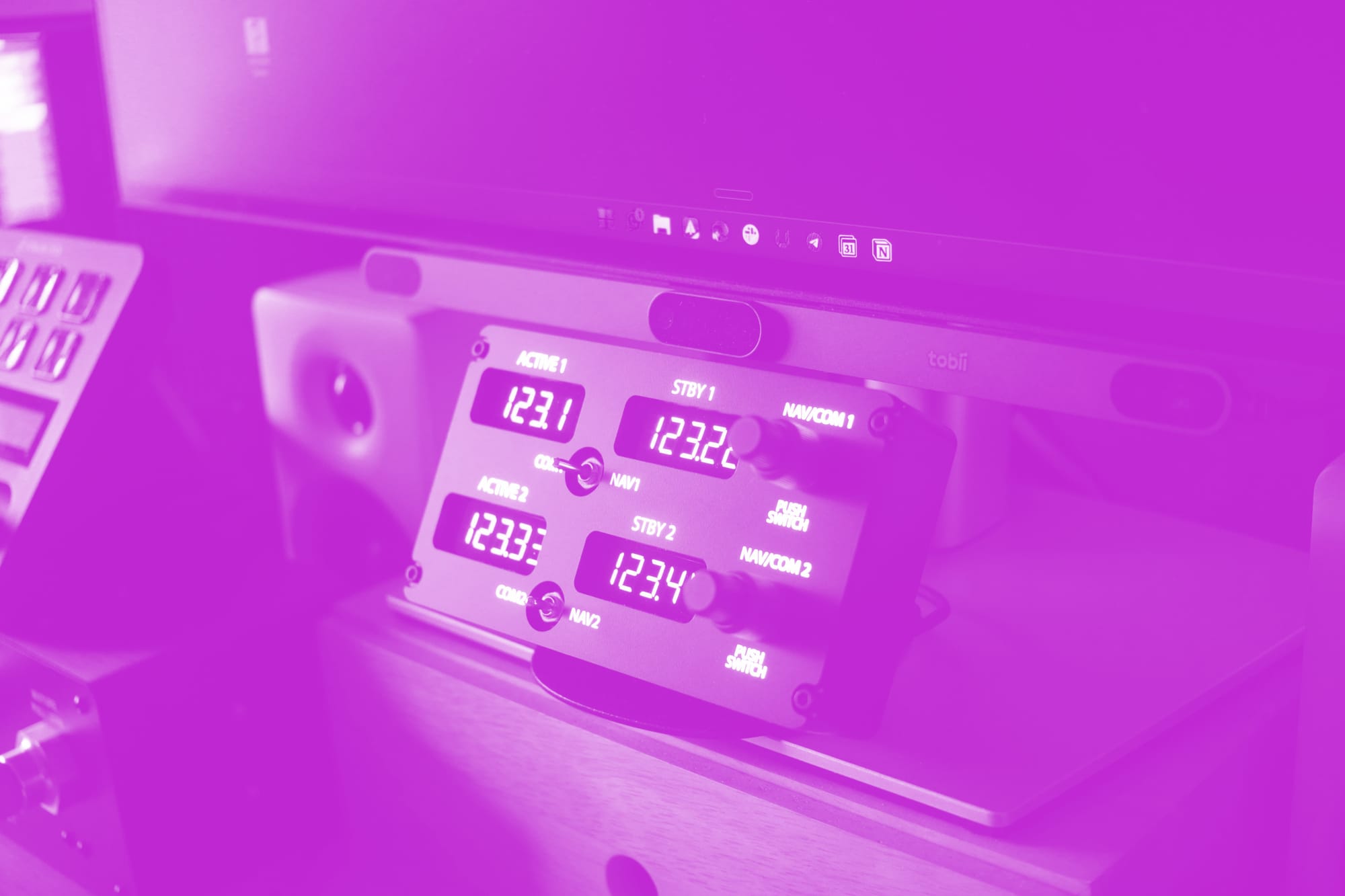
PU Air’s universal radio panel (GA, airliners) gets a lot right at a very reasonable price — US$100 shipped. It also feels like what it is: a focused product from a small team of three real-world pilots, Usoo, Kim, and Jun. That matters. This isn’t a large organization shipping a legacy product line — it’s a team trying to bring training-relevant sim hardware to market at a reasonable cost.
Two things are true at once: it feels more premium than you’d expect in the places you touch most, and it still has a few “prototype” signals (branding, enclosure, software finish) that remind you where the cost savings came from.
What this is
This is a compact, universal COM/NAV radio control unit — not a “Cessna panel” or “Airbus panel,” but a jack-of-all-radios in a small box. In practice, it lets you dial a standby frequency, push to flip it active, and switch cleanly between COM and NAV without touching the mouse.
The obvious reference point is the aging Logitech Flight Panel (Saitek era — first came out in 2008). That large panel really hasn’t evolved over the decades. The PU Air unit is far more compact and, visually, more striking.
Out of the box
This arrived from Incheon, South Korea via EMS in about eight days. Packaging was solid — the unit felt protected, with no real chance of dents — and it came in a purple box with PU Air logo embossed on it. Simple, nice, but mostly unremarkable. One odd detail: the box makes no mention of the model name.
In the box you get the unit, and a USB‑C cable. The cable seems like a Gen 1 cable, but it’s a good one: soft, malleable, long (about 2 meters).
The stand (an optional purchase for US$7 – I'd recommend it) is the surprise win and is something that other vendors should follow. It’s a MagSafe magnetic mount that’s iPhone compatible, which means you can use the entire existing MagSafe accessory ecosystem of phone stands and car mounts instead of getting trapped in a proprietary mounting system. It’s also rotatable, with a stable and flexible posture. That heft matters because the unit itself is light.
In hand, the device feels like two products stitched together. The front panel plastic is higher quality and slightly matte, with backlit lettering that’s bright and sharp. Nothing about the unit suggests 3D printing, which is impressive at this price. The back half is cheap hard ABS, and you can see the flash point — not pretty, but also not something you’ll care about once it’s mounted.
The “finished product” signals are mixed. There isn’t a single logo on the unit (might be a positive for some setups), and there’s no model name, serial number, or QC sticker anywhere either. It feels like a missed opportunity for branding, but it also reads like a maker-product that hasn’t fully crossed into “mature consumer hardware” territory.

On the back, PU Air made the right practical choices: the USB‑C port is routed cleanly to the rear (instead of the sides or top), and there’s a simple on-off switch (kills the bright screens — useful at night if your rig is in your bedroom).
Software setup and first-use reality
The radio requires PU Connect (I tested version v.260204). This installs easily enough if you grab it off the website, but the interface looks rudimentary — almost crude — like it was written for Windows 7. The frustrating part is that while it has useful settings, it doesn’t explain them especially well.
You can choose how many decimal places you want to see and edit, for example 123.45 or 23.450. There’s an important trade-off here: 2-decimal mode preserves the leading “1” (so quick-at-a-glance verification stays intact), but 3-decimal mode drops that leading “1” to make room for the extra digit. I found 3-decimal visibility essential for accurate tuning or you might end up with 123.455 when you had intended to dial in 123.450.
Furthermore, you can change what the hard switches control: either COM1/NAV1 + COM2/NAV2 (default) or COM1/COM2 + NAV1/NAV2. You can also tune knob sensitivity so that faster turns create bigger jumps.
On first plug-in, I got no Windows chime — and I eventually discovered I had to use the cable that came with the unit. Practical takeaway: it may not work with your existing USB‑C cables so don’t lose the original cable. A picky connection may also mean this could be problematic if you’re using a USB hub.
Lighting control is straightforward: you can adjust brightness and you can sync the backlighting with the in-game aircraft (a really nice touch).
Magenta Debrief Flight Sim Reviews
Get the latest hardware and software reviews delivered to your inbox.
Points of friction
A training device needs two things: reliable inputs and repeatability. This is where friction shows up.
Software
The biggest challenge with this unit isn’t the hardware — it’s the software. I spent a couple of hours troubleshooting at the start because the configuration files were corrupted and needed to be deleted and rebuilt (per Google Gemini’s guidance).
During flight, the lights on the module also flashed from time to time, as though it was struggling to stay connected to MSFS. The knobs didn’t turn with the precision and consistency I expected — they would skip or lag from time to time. I tore down my rig and reconnected all my devices, while making sure that my USB hubs were properly powered. That solved my initial problems.
Mounting
Given the position of the dial, you'll be operating the dial with your right hand and therefore the unit will have to be placed on the right side of your setup. Physically, the unit is light enough that if you don’t secure it, it will run around your desk — and that’s not just annoying, it breaks repeatability. The included mount is not optional; it’s part of how you keep your reps consistent.
Panel-mounting is close, but not quite there. There are four mounting screws — that’s most of the work done — but PU Air hasn’t published the dimensions you’d need to mount it cleanly on a dashboard. A simple diagram with hole spacing (center-to-center), screw size/thread pitch, and a recommended panel cutout would remove a lot of unnecessary reverse-engineering.
Finally, there’s the sim-rig mounting reality: there are no mounting points on the case for hard-mounting to common gear (say, a Honeycomb Alpha) without improvisation. You can probably solve it with 3D printing, but you shouldn’t have to.
A minor point — the enclosure sounds hollow. The switches and dials feel satisfying, but the empty-box resonance makes the whole thing feel less solid than it otherwise looks.
A straightforward path here is a slightly higher-priced “pro” version. If PU Air bumped the price to around US$150, they could likely fund the specific upgrades that would turn this from “surprisingly good for the money” into “finished training hardware”: a heavier, more solid case (less desk drift, less hollow resonance), an interchangeable faceplate (if you wanted to switch the COM/NAV pattern), and proper side mounting brackets for sim rigs.
Our evaluation process
The Magenta Standard Evaluation
Every piece of hardware reviewed is evaluated against five professional criteria to ensure it serves as a true procedural training device.
| Criteria | Evaluation Logic |
|---|---|
| 01 Mechanics | Does the hardware mimic the physical forces and control travel found in real General Aviation aircraft? |
| 02 Tactility | Does it support eyes-outside operation through distinct physical feedback and ergonomic positioning? |
| 03 Integration | How seamlessly does the device interface with Electronic Flight Bags (EFB) and professional training software? |
| 04 Procedural | Does the hardware support the muscle memory needed for actual syllabus requirements and cockpit checklists? |
| 05 ROI | Does the measurable gain in proficiency justify the hardware cost compared to wet-hire aircraft rental hours? |
WANT TO DIVE DEEPER? VIEW THE MAGENTA STANDARD →
1. Mechanics: does it reinforce correct control behaviors for radio work?
Verdict: Delivers a solid job turning radio interaction into a physical procedure
The mechanics question here is: does it create consistent, repeatable inputs that map to how you actually operate COM/NAV in a cockpit? Your loop is the right procedural shape: dial standby, push to activate, flip COM/NAV.
2. Tactility: can you operate it eyes-outside?
Verdict: Strong tactile cues and good ergonomics — the physical interface mostly matches the training intent
- Switches: metal switches are very tactile with a satisfying on-off click
- Dials: tight, with a satisfying push-click
- Backlit labeling is bright and sharp (important for evening sessions)
- The US$7 stand makes a big difference: stable enough to operate one-handed without holding the unit down — if you’re using the included mount
This is the core win for a student pilot: it makes radio work something you can reach for and do without breaking your flow.
3. Integration: does it fit cleanly into a real sim training setup?
Verdict: Better than expected for the price — rear USB‑C routing and MagSafe ecosystem support are smart — but the software is a real footgun
Integration positives:
- Clean, rear cable routing is the right call
- Physical on-off switch is a quality-of-life feature
- Magnetic ring + MagSafe compatibility gives you flexible mounting options with existing accessories
Integration negatives / gotchas:
- Software UX/UI feel unfinished and undermines the overall experience
- No hard mounting points limits clean sim-rig installs unless you DIY
4. Procedural: does it reduce uncertainty and build syllabus-relevant habit patterns?
Verdict: High procedural value for early training — it makes COM/NAV management tangible, fast, and repeatable
For the GA student pilot, this is a great low-cost device that immediately improves your understanding of NAV and COM radios. It makes the workflow tactile, easy to reach for, and easy to integrate into training.
Tactile use is the point:
- Dial in your standby frequency
- Hit push switch and it goes active
- One switch flips from COM to NAV — so easy
5. ROI: does the training gain justify the cost?
Verdict: At US$100 shipped, it’s hard to argue against
US$100 is impulse-territory compared to most sim hardware. Framed against dual instruction (US$250–US$300/hour), the ROI argument is simple: if this helps you build radio fluency without burning real-aircraft time (or reduces remedial “radio confusion” time), it pays for itself quickly.
The biggest competitor is the Logitech Flight Panel (Saitek, 2008), which you can find used at half the price. But it hasn’t evolved much, and may not even work properly given its age. This PU Air unit is more compact and looks more modern. You may also be tempted to build your own with a Knobster, but even that – and that's only a dial – would take you out of that $100 range.

Verdict
We recommend PU Air Korea's radio. You don't often come across a flight sim tool that is this affordable. Two things are true:
- This is a surprisingly premium-feeling universal radio panel where it counts (front panel, backlighting, tactile switches, ergonomic stability on the stand)
- It also carries a few “unfinished product” signals (no branding/serial/QC, hollow enclosure sound, rudimentary software UI, no mounting points)
Who should buy it:
- GA student pilots who want a low-cost way to make COM/NAV work tactile and repeatable
- Anyone who struggles with mouse-driven radios and wants a compact desk-friendly panel
- Pilots building a minimal setup who value a stable, one-handed interface (the stand is a major enabler)
Who should skip it (or at least pause):
- Buyers who need clean, hard-mounted sim-rig integration out of the box (no mounting points)
- Anyone who expects a polished desktop companion app
- People who want strong product-line clarity and “this is a finished, supportable consumer product” signaling
About this review
PU Air sent this unit for review with no financial arrangement. It will be kept for comparison with competing hardware and future software updates, if any. PU Air was not shown a draft before publication, and review angles were not discussed in advance.